 NexSms官方博客
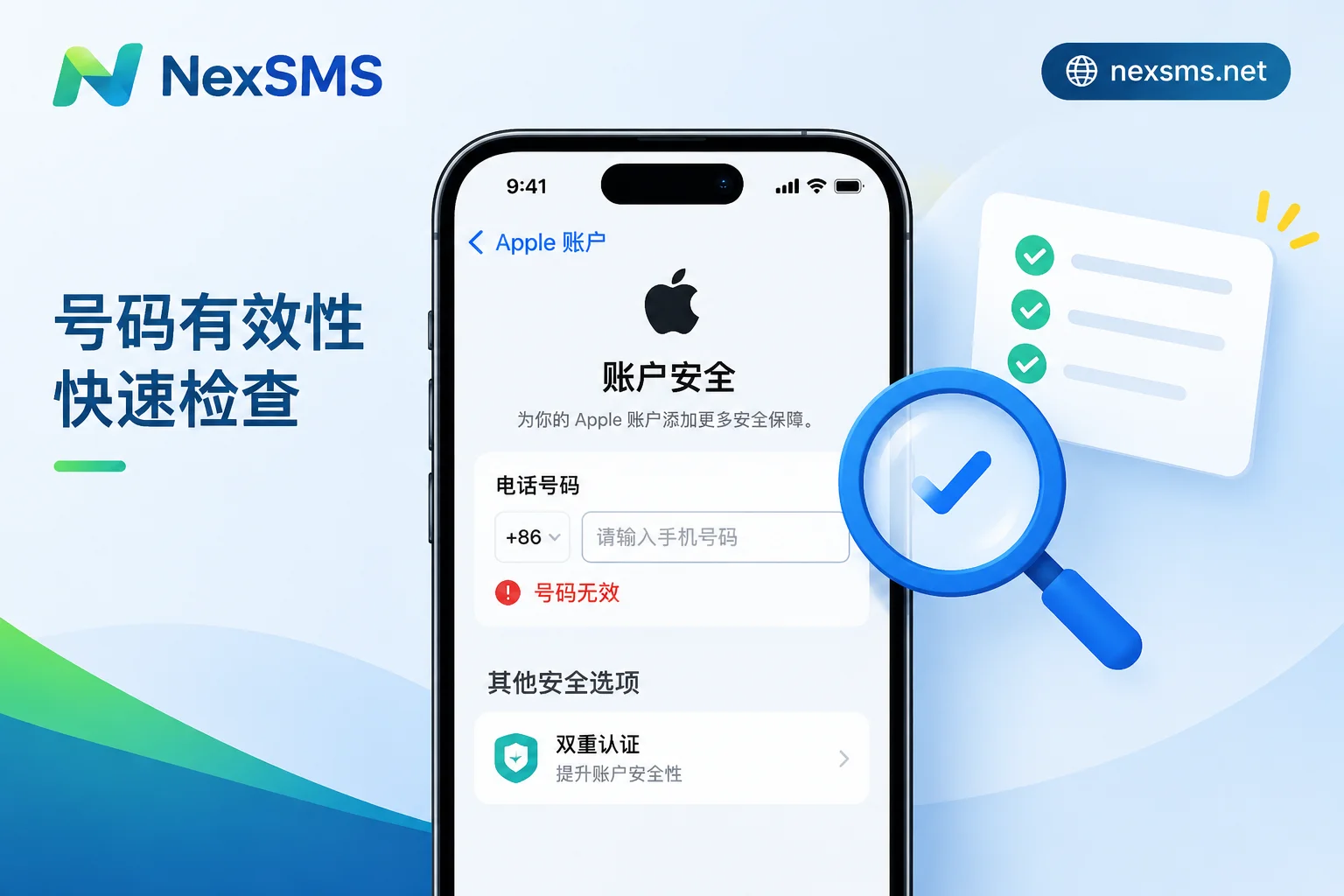
Here's the bottom line: when you see "invalid phone number" while binding a phone number, in most cases the number itself isn't bad. The common causes fall into four categories: formatting errors, unsupported number types (usually VoIP or virtual numbers), too frequent binding or unbinding of this number recently, and the current device or network environment triggering risk control.
We recommend troubleshooting from low-cost to high-cost: first fix the format, then switch to the web and try a different network, and only then consider changing the number. If you really need to change it, pick one that can still receive SMS in the future. This number will become your credential for receiving verification codes when logging in on a new device or resetting your password. A number that only works once will cause trouble later.
First, read the exact error message to get a rough direction
- "Invalid Phone Number": Most likely a formatting issue or number type issue.
- "This phone number cannot be used at this time": More often related to the number's binding count, cooldown period after unbinding, or device/network risk control.
This distinction is only a starting point. Apple hasn't disclosed which specific cause each message corresponds to, and both can occur simultaneously.
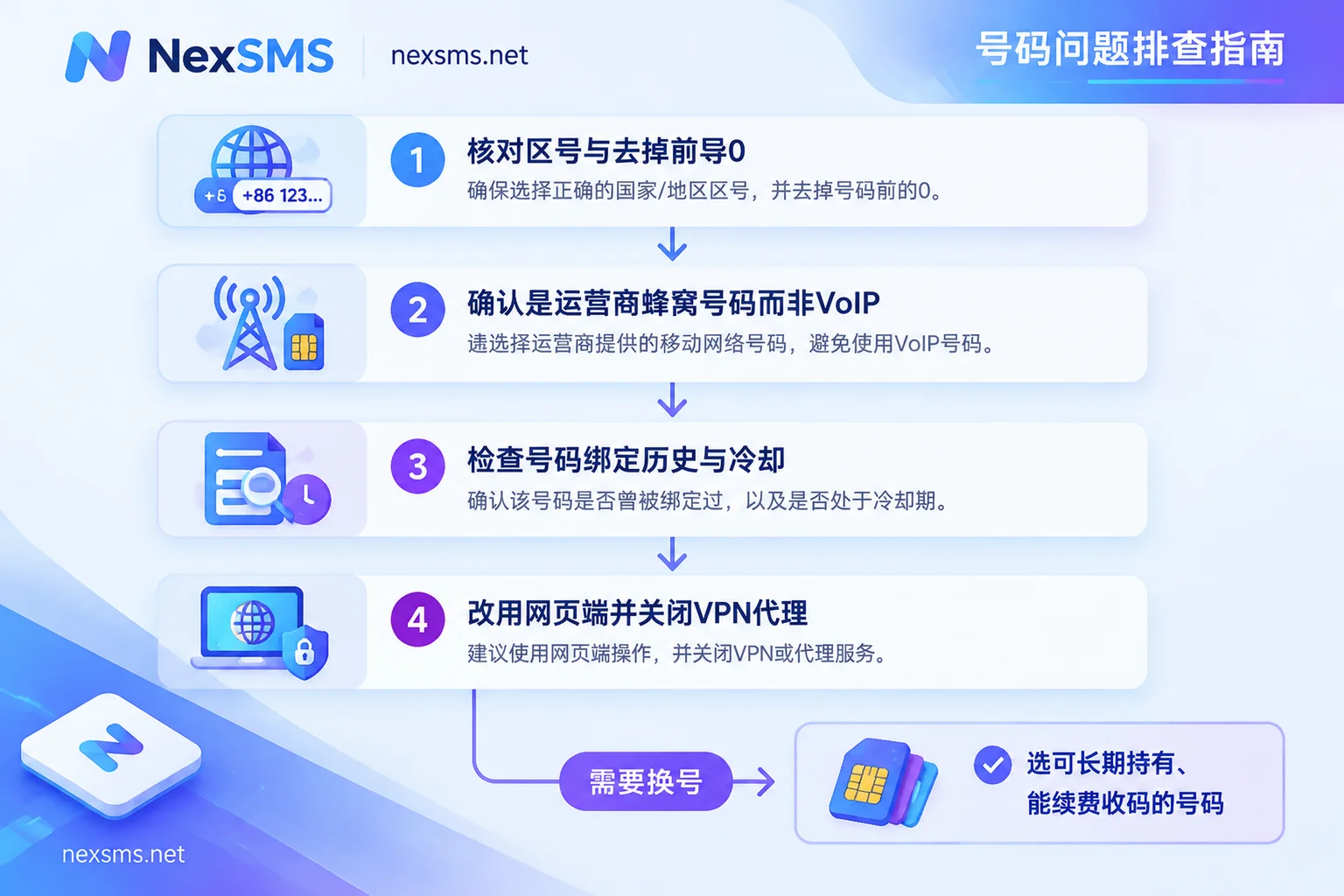
Step 1: Check the country code and number format
This step is most easily overlooked but quickest to fix:
- Country/region must match the number's origin. For example, if you select US +1 for a UK number, the system will immediately deem it invalid.
- Remove the leading 0 from local numbers. Some countries' mobile numbers have a leading 0 in local format, which should be removed when using an international country code. For example, a UK number 07xxx xxxxxx should be entered as 7xxx xxxxxx after selecting +44; a Japanese number 090-xxxx-xxxx should be 90xxxxxxxx after selecting +81.
- Enter digits only. No spaces, hyphens, or parentheses. If you've already selected the country from the dropdown, don't repeat the +country code in the number field.
- Check the digit count. Missing or extra digits will trigger the invalid error.
If the format is correct but the error persists, move on to the next check.
Step 2: Confirm the number is a carrier mobile number, not VoIP
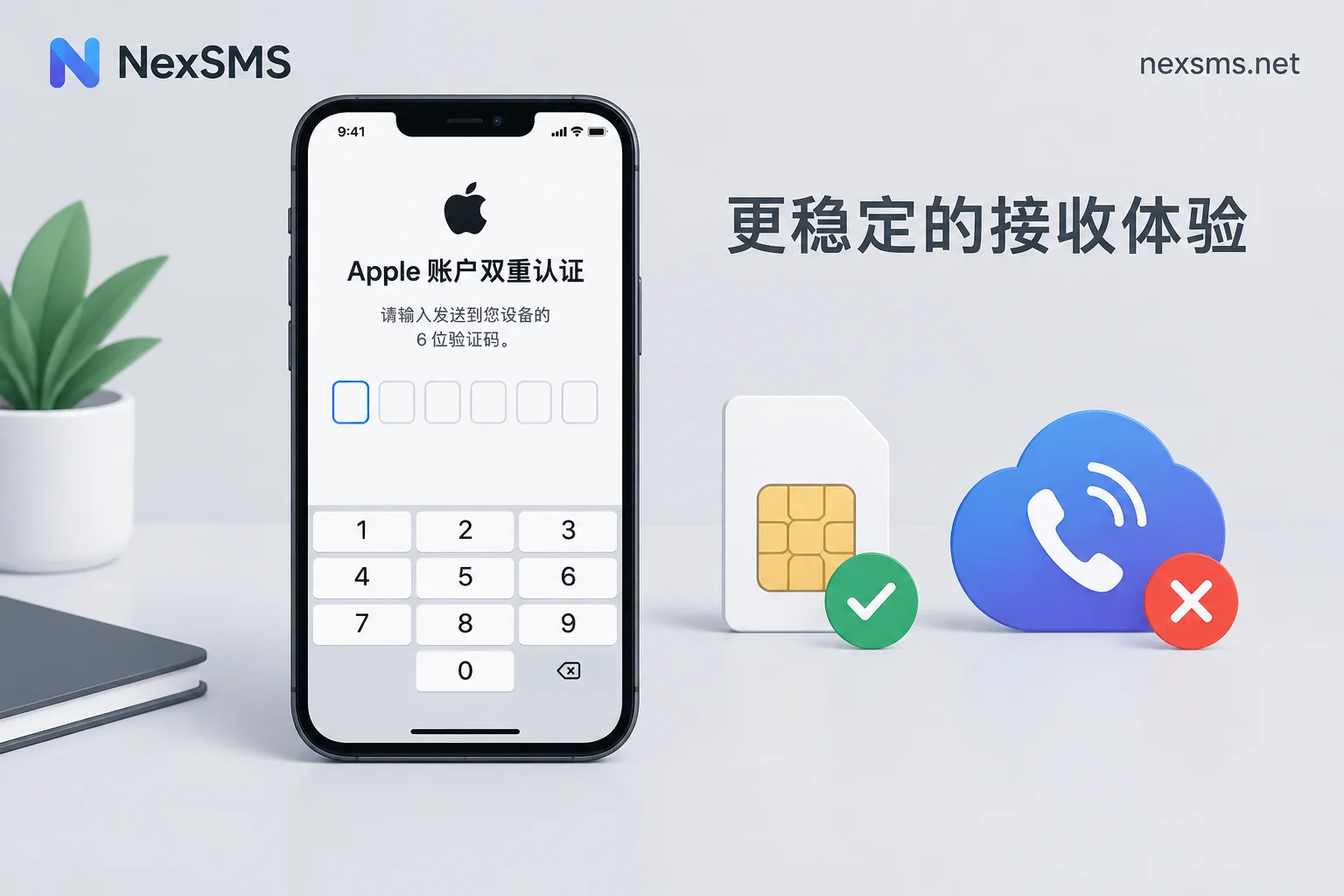
Apple's security verification typically requires a mobile number from a legitimate telecom carrier; both physical SIM cards and eSIMs are fine. VoIP numbers assigned by internet calling apps, as well as some virtual number ranges, are often directly unsupported by the system, which manifests as "invalid phone number."
A simple test: Is the number on a carrier SIM card or eSIM in your phone, or was it registered in an app and can only receive SMS within that app? If the latter, it's likely VoIP, and changing the format won't help—you'll need a different number. For how VoIP numbers work and why they may not receive verification codes, see What is a VoIP phone number; for whether Apple ID can use virtual numbers, see Can an overseas Apple ID use a virtual number?.
Step 3: Consider the number's binding history
If the same number has been linked to too many Apple accounts in a short period, or was just unlinked from an old account, it may trigger Apple's anti-abuse protection and temporarily be ineligible for new account verification.
Note that Apple has not disclosed how many accounts a single number can be linked to, nor how many days to wait after unlinking. Online claims like "just wait X days" have no official basis and should only be taken as reference.
Here's what you can do:
- If the number is your own long-term number: Wait a while and try again. Don't repeatedly submit during the wait; frequent retries may prolong the restriction.
- If the number comes from second-hand, shared, or public SMS-receiving sites: There's no way to know who used it or how many accounts it's been linked to. Such numbers are not suitable as trusted numbers—switching is faster.
Step 4: Try a different channel and network
- If it fails in iPhone Settings, switch to the web. Device-side operations may be limited by the number of accounts created on that device. Use a computer or mobile browser to open Apple's official account management page (account.apple.com), sign in, and add a trusted phone number under security settings.
- Turn off VPN or proxy. Shared exit IPs are more likely to trigger risk control; switch to your regular network and try again.
- If it fails a few times in a row, pause. Don't repeatedly submit the same number in a short time.
When you need to change numbers: choose one that can still receive codes later
According to Apple's official documentation, trusted phone numbers are used to receive verification codes when signing in on a new device, resetting a password, and for two-factor authentication. So when choosing a number, consider two things: whether it can be bound now and whether it can still receive SMS later.
A one-time temporary number is no longer yours after use. When you change phones, lose a device, or the system requires re-verification, the code will be sent to a number you no longer control, potentially locking you out of your account with no recovery.
Some safer practices:
- Prefer a carrier number you've held long-term. If a domestic number meets your needs, using it is the simplest.
- If you really need an overseas number, choose a real carrier's local number that you can hold long-term. If you don't have a suitable overseas SIM card, consider NexSMS's long-term premium numbers. They are real carrier local numbers (physical SIM and eSIM, not virtual landing numbers), can receive codes repeatedly during the validity period, and can be kept by renewing before expiry—ideal for trusted numbers that need to receive codes later. Short-term regular numbers are one-time-use and not suitable as trusted numbers. Whether a number passes verification depends on Apple's rules at the time; no platform can guarantee success. For the difference between the two types and renewal conditions, see NexSMS feature description.
- Remember to renew long-term numbers on time. If you don't renew, the number is no longer yours—same risk as a temporary number. Set a reminder for the expiry date.
- Add a backup trusted number. An Apple account can have multiple trusted phone numbers. If the primary number has issues, you can still receive codes on the backup.
- When switching, add the new number first, then remove the old one. After confirming the new number can receive verification codes, remove the old one to avoid a gap with no usable number.
Number bound but verification code not received
This is a different issue, often caused by carrier lines, SMS blocking, or international SMS delivery. The troubleshooting approach is different. For this, see Apple ID overseas phone number not receiving verification code; if you encountered other errors when adding a trusted number, see Apple ID adding trusted phone number failed.
If you've tried all the steps above and still fail with a real carrier number, contact Apple Support, provide the exact error message and steps you took, and ask them to check your account status.


Comments(0)