 NexSms官方博客
Common reasons for failing to add a trusted phone number in your Apple Account (formerly Apple ID) fall into these categories:
- Number line rejected: Apple deems the number unsuitable for receiving verification, such as virtual numbers or VoIP internet calls.
- Number already in use: This number is still bound to another Apple Account.
- Temporarily restricted due to too many requests: Repeatedly requesting verification codes or entering incorrect codes multiple times in a short period.
- New device in security waiting period: A newly signed-in device temporarily cannot modify account security information.
First, check the system's prompt text; it usually corresponds to one of these categories. If the number itself is fine, wait a while, or try again on a trusted device or the web. Most issues resolve this way.
Before you start, there's one more thing worth thinking through: a trusted phone number isn't just for one-time use. Later, when you sign in on a new phone, reset your password, or recover your account, you'll rely on it to receive verification codes. Being able to add the number is only the first step; being able to reliably receive codes later is more important.
First confirm the entry point and number format
Official entry points to add a trusted phone number:
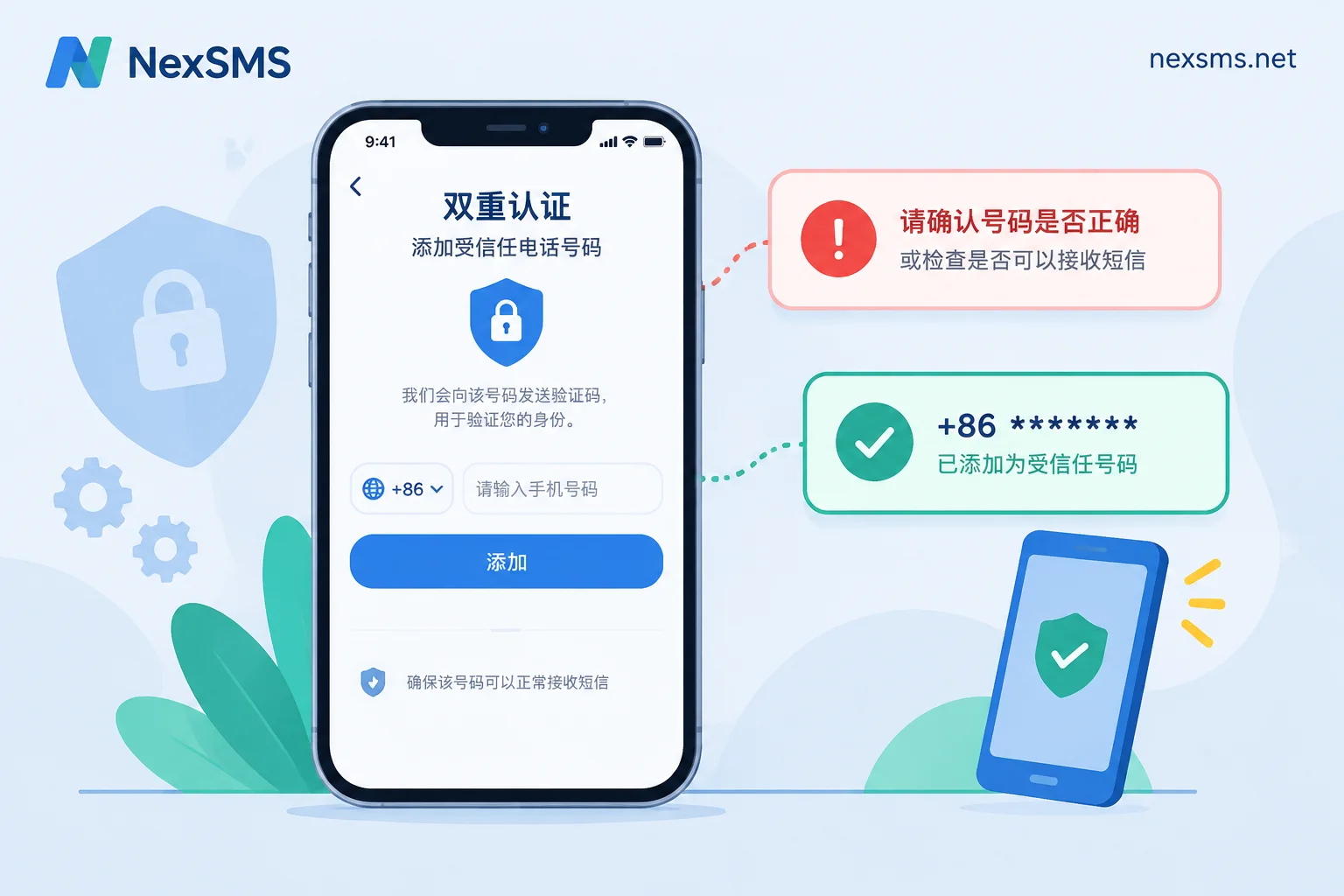
- iPhone / iPad: Settings > Tap your name > Sign-In & Security > Two-Factor Authentication > Add Trusted Phone Number
- Mac: System Settings > Click your name > Sign-In & Security > Two-Factor Authentication
- Web: Sign in at account.apple.com, then under 'Sign-In and Security' > 'Account Security' add it.
Two easily overlooked details:
- New devices have a security waiting period. When a new device first signs in to your account, the system may require a waiting period before allowing changes to critical information like trusted phone numbers. Don't keep trying; use an already trusted old device or the web instead.
- Enter the number in international format. First select the correct country or region, then enter the number itself. Do not duplicate the international prefix. Some countries have a leading 0 for local mobile numbers (e.g., UK numbers starting with 07); when entering in international format, remove this 0. Wrong format will also trigger 'invalid number'.
Diagnose the cause based on the prompt
| Prompt or symptom you see | Likely cause | What to do first |
|---|---|---|
| 'This phone number is invalid' or 'Unable to verify phone number' | Wrong number format or country code; the number belongs to a virtual or VoIP line, rejected by the system | Check the format first; if the format is correct but still errors, it's likely a line issue—consider switching to a real carrier number |
| 'This phone number is already used by another account', or verification keeps failing | The number is still bound to another Apple Account. A number recycled and reissued by the carrier may have been previously bound by the former owner | If it's your own old account, sign in to the old account and remove the number first; if not, contact Apple Support |
| 'Verification code cannot be sent to this phone number at this time' or prompt to try later | Temporary restriction triggered by frequent requests or multiple incorrect entries; or the number line is not accepted | Stop, wait a few hours to 24 hours, and try again on a stable network or trusted device |
| Prompt says sent, but phone doesn't receive it | Carrier or phone blocking SMS, signal or roaming issues, or number doesn't support receiving international SMS | Switch to receive the code via phone call; check SMS blocking settings; confirm the number can receive international SMS |
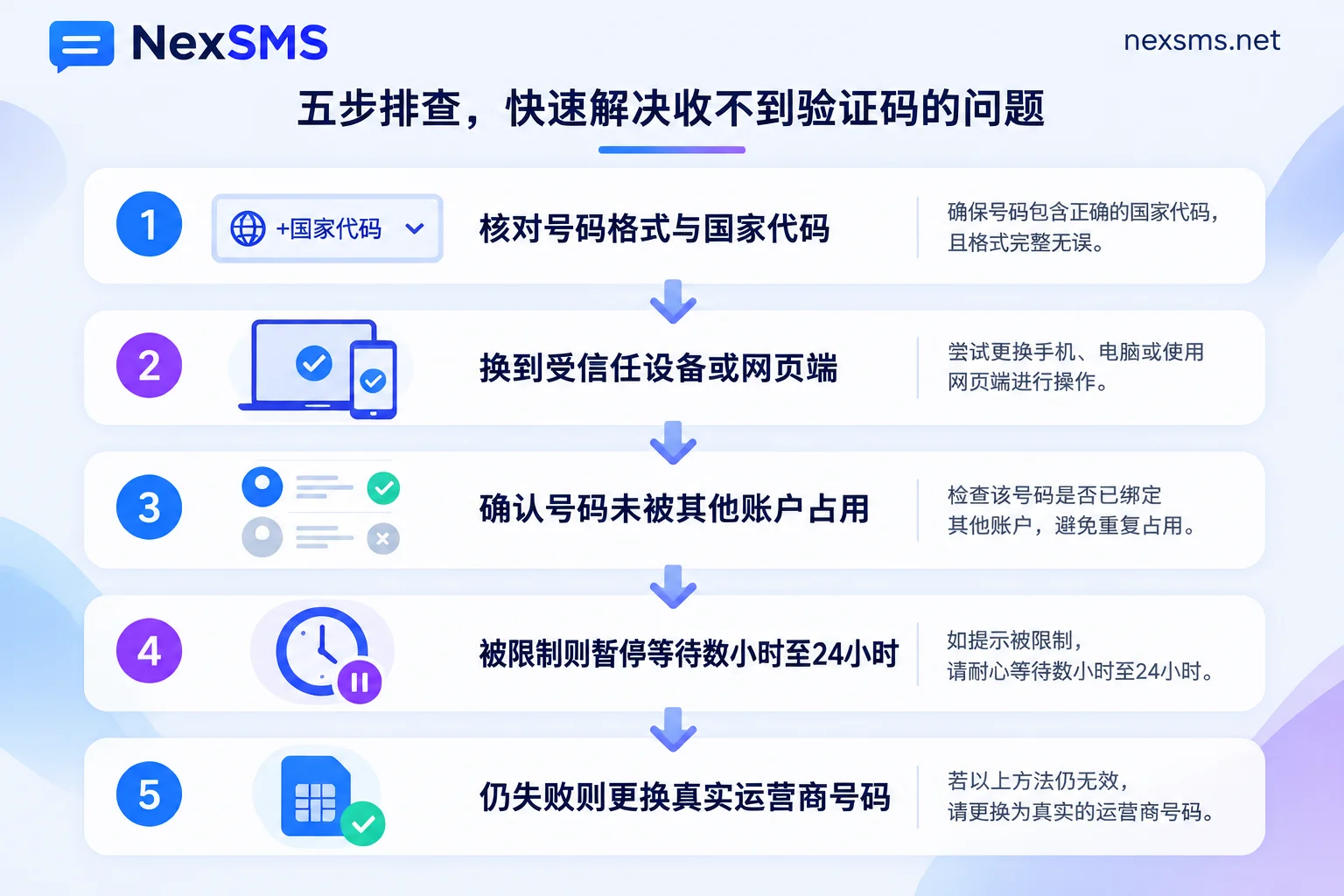
Time-saving troubleshooting order
- Verify number format and country code. This is the least costly step—rule it out first.
- Try a different entry point. If you can't change it on a new device, use an old trusted device or account.apple.com.
- Confirm the number isn't already in use. Especially for newly purchased or second-hand numbers, consider that the previous owner may have bound it.
- If restricted, stop first. When prompted to try later, continuing to tap 'Resend' usually only extends the wait.
- If all above are ruled out, the problem is likely the number itself. Rather than retrying repeatedly, switch to a number with a more suitable line type.
If you're stuck at not receiving a verification code when changing to an overseas phone number, you can refer to this more detailed troubleshooting: Apple ID not receiving verification code when changing to overseas phone number.
Why virtual numbers often fail
Apple scrutinizes virtual numbers, VoIP, and internet calls (e.g., numbers from some apps, Google Voice) quite strictly. Such numbers are often directly flagged as 'invalid', or show as sent but never receive the code.
It should be noted that Apple has not publicly disclosed how it determines if a number is VoIP, nor its filtering criteria. Some virtual carrier numbers may pass, others may not, and results can change with Apple's policies at the time. So no one can guarantee a certain type of number will pass. For pass rate and long-term stability, a physical SIM or eSIM line from a local mobile carrier in the country is a more reliable choice. For why VoIP numbers often can't receive verification codes, see What is a VoIP phone number.
When changing numbers, don't use a one-time number as your trusted number
The purpose of a trusted phone number is to prove 'this is you' when you lose your trusted device—for example, if your phone is lost, broken, or you switch to a new device and need to sign in. If you bound a one-time temporary number, once it expires, you won't receive verification codes in such situations and will have to go through a lengthy account recovery process.
So when choosing a number, besides 'can it receive codes now', also consider 'will it still receive codes a year from now'. A few practical tips:
- Add the new number first, then remove the old one. After successfully adding the new number and confirming it can receive codes, remove the old one to avoid a gap with no usable number.
- Use a number you hold long-term. Your everyday mobile number is best. If you need an overseas number, choose one that can be renewed.
- Short-lived verification numbers are not suitable here. Such numbers expire after one use; they can handle one-time verification but are not suitable as trusted numbers.
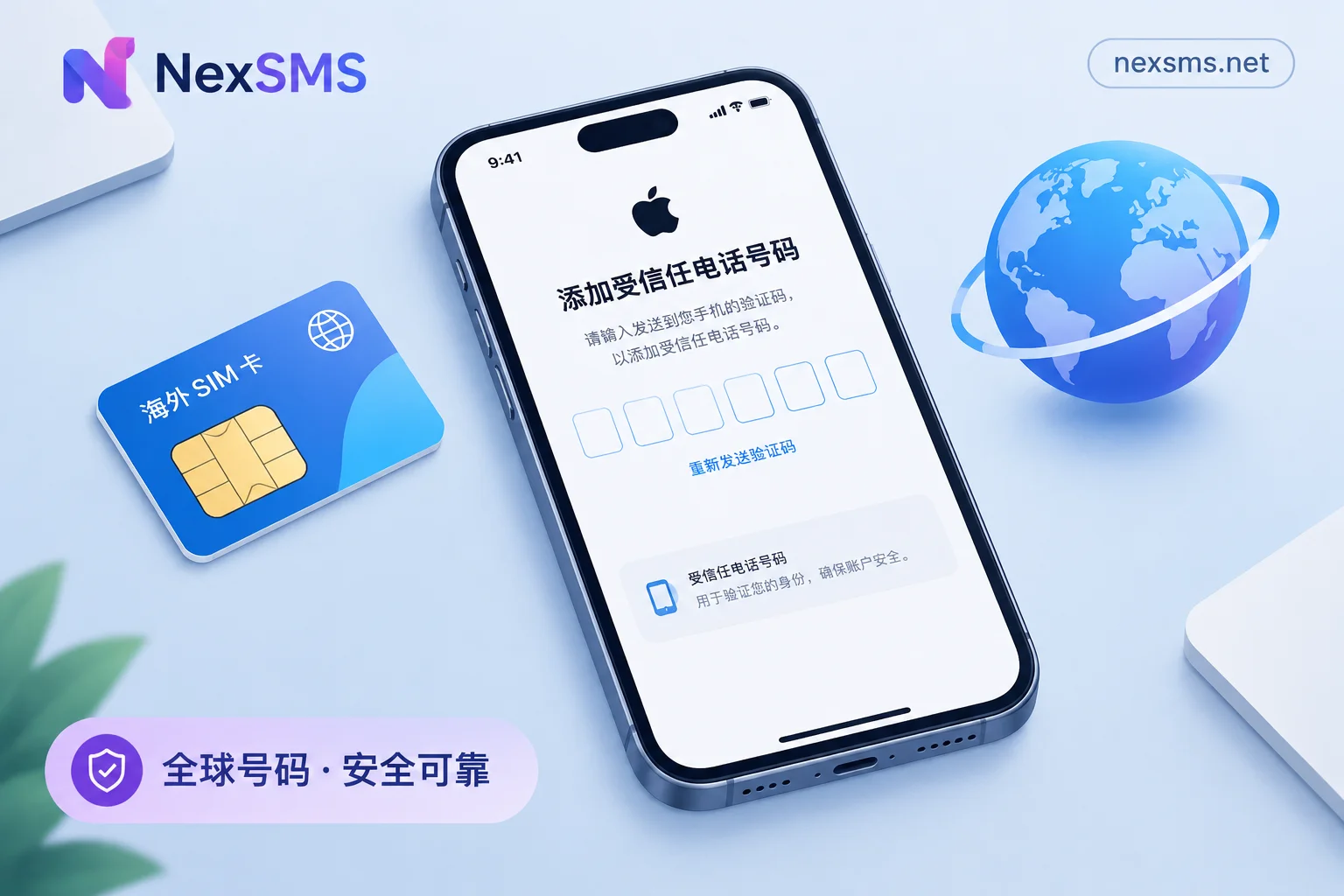
If you don't have a long-term overseas number, consider NexSMS's long-lasting premium numbers. They are real carrier local numbers (physical SIM and eSIM, not virtual landing numbers), can be renewed, have unlimited code receptions within the validity period, and display verification codes in real time on the web—suitable for scenarios where you'll need to receive codes multiple times in the future. Two points to note: whether it passes verification is ultimately determined by Apple's rules at the time; long-lasting numbers must be renewed before expiry to keep them, so if you don't plan to renew, remember to switch to another number in your Apple Account first. For the difference between short-lived and long-lasting numbers and renewal conditions, see Number type explanation.
To further compare the long-term costs and risks of self-owned SIMs, cloud long-lasting numbers, and short-lived numbers, see How to choose long-term overseas number rental.


Comments(0)