 NexSms官方博客
Conclusion first: When changing the bound overseas phone number for an Apple account, most cases of not receiving the verification code get stuck in one of four places: incorrect number format, number type rejected by Apple (e.g., some VoIP numbers), rate limiting due to too many resends in a short time, and cross-border SMS route delays. It's recommended to handle in this order: Check format → Switch to voice call → Stop and wait → Replace with a real carrier mobile number.
There's one more point more important than receiving this one verification code: a trusted number will be used repeatedly to receive codes in the future. Choosing the wrong number, even if the rebinding succeeds, could lock you out of your account months later.
First, understand the rebinding rules
After enabling two-factor authentication on an Apple account, at least one trusted phone number must be registered. When there's no trusted device, the 6-digit verification code is sent to this number.
The order of rebinding is fixed: first add and successfully verify the new number, then remove the old number. When there are no other usable trusted numbers in the account, the system does not allow deleting the existing number directly. So the new number must receive the verification code on the spot for the rebinding to complete. Do not deactivate the old number before the new number is verified.
Troubleshoot in this order
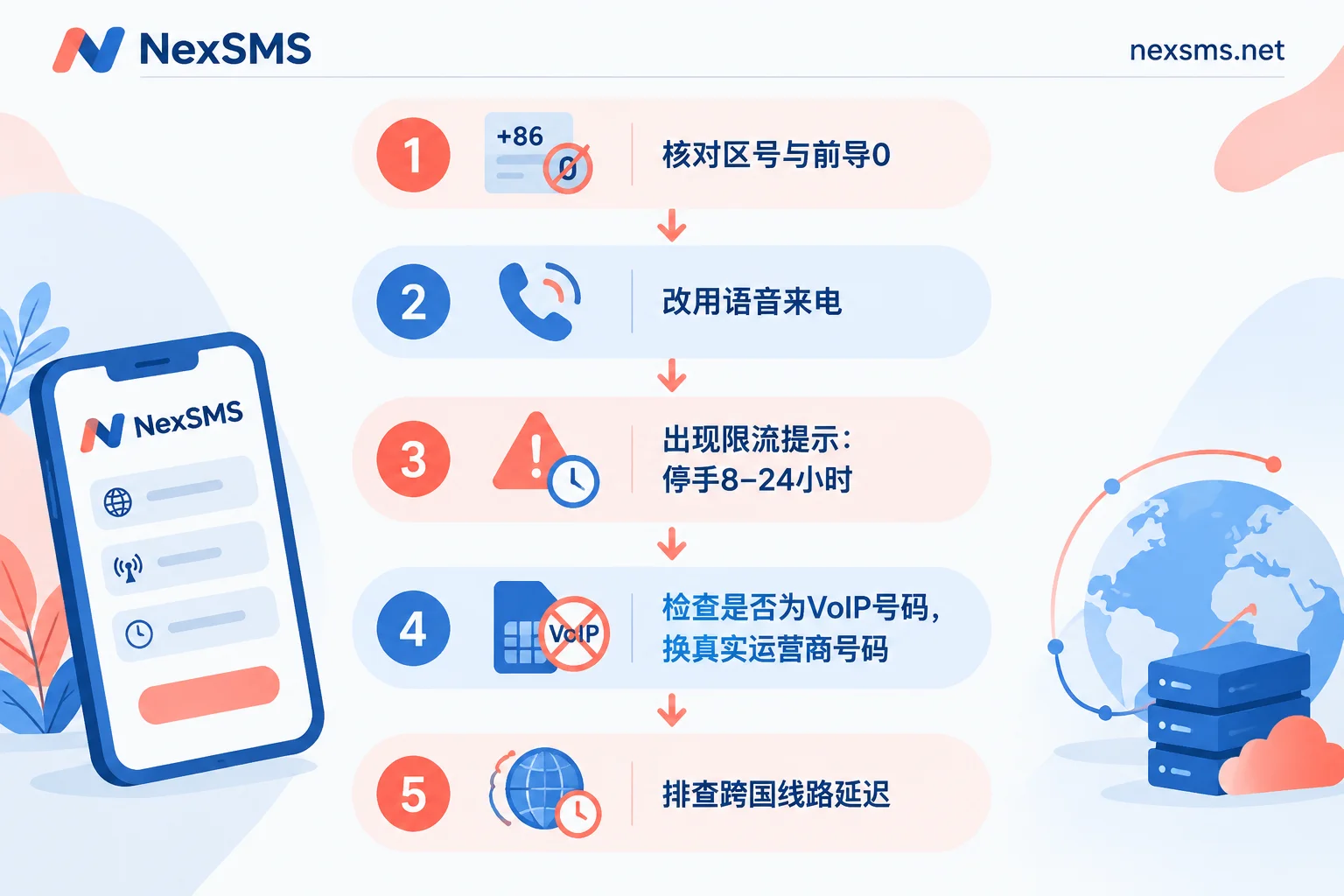
1. Check the number format
This is the most easily overlooked step. After selecting the country/region code in the list, do not include the local leading 0 in the main number.
- A UK mobile number is locally written as 07xxx; after selecting +44, enter 7xxx.
- For a US number, after selecting +1, enter the 10-digit number directly, without adding a 1 in front.
If the format is incorrect, the SMS gateway cannot deliver it. The interface may not show an error; it just seems like you never receive it.
2. Switch to voice call
On the verification screen, tap "Didn't get a verification code?" to switch to receiving an automated voice call, and the verification code will be read out over the phone. The prerequisite is that this number can receive calls. Some numbers can only receive SMS and cannot receive calls; such numbers cannot use this option.
3. Stop when you see a rate limit message
If you see "Cannot send verification code to this phone number right now, please try again later" or "Too many verification codes sent," it means Apple's risk control rate limiting has been triggered. Continuing to tap "Resend" or repeatedly submitting will only extend the restriction.
Apple has not disclosed the exact unblock time. Based on user community and third-party experience, after completely not operating for 8 to 24 hours and trying again, most recover. During the wait, do not try different numbers in turn, as that will also be counted as frequent requests.
4. Check the number type
If the format is fine, no rate limit triggered, but you still never receive the code, look at the number itself. Apple identifies the type of number used for two-factor authentication. Some VoIP numbers (e.g., Google Voice) or public landing number ranges may be directly rejected, or silently dropped: the interface shows sent, but nothing is actually received.
Apple has not published a blocklist. Not receiving the code doesn't necessarily mean it's blocked, but in this case, switching to a real carrier mobile number is usually the most direct solution. For why VoIP numbers easily fail to receive codes, see What is a VoIP phone number.
5. Consider cross-border routes
The situation for receiving international verification SMS (A2P) varies by country and carrier; sometimes it may be delayed by a few minutes. You can wait a bit before deciding whether to resend. If this number also frequently fails to receive codes on other platforms, the problem is likely with the number or route, not Apple. For a layered troubleshooting method, see What to do when cross-border SMS verification codes are not received.
Having a trusted device on hand makes things much smoother
If you still have an iPhone, iPad, or Mac logged into this Apple account, identity confirmations like login and password changes can be completed directly by tapping "Allow" on the device. You can also go to "Settings > [Your Name] > Sign-In & Security" to have the system generate a verification code; this step doesn't rely on SMS.
However, be clear: the device only helps you pass identity confirmation. When adding a new number, the verification code still must be sent to the new number. If the new number can't receive the code, none of the above troubleshooting steps can be skipped.
Choosing a number: this number will need to receive codes long-term
A trusted number is a long-term credential. Logging in on a new device, changing passwords, or recovering the account in the future may all require it to receive codes. So when choosing a number, consider more than whether it can receive this one time:
- Short-term numbers are not suitable. Such numbers are used up after one verification, and then the number no longer belongs to you. If one day you don't have a trusted device on hand, the account might have to go through a lengthy official recovery process.
- Do not use free public numbers. Verification codes on the number's page are visible to anyone; binding it to an Apple account is like handing over security verification to others. For reasons, refer to Which is safer: free SMS receiving platforms or paid private numbers.
- Suitable choices: An overseas physical SIM card you hold long-term, or a long-term number that can be renewed and repeatedly receive codes within its validity period.
If you don't have an overseas physical SIM card, consider NexSMS's long-term premium numbers. They are real carrier local numbers (physical SIM and eSIM, not virtual landing numbers), can be renewed, receive codes unlimited times within the validity period, and verification codes are displayed in real time on the web page. Two points to note: First, you must renew before expiration to continue holding the number; note the expiration date. Second, whether it can pass Apple's verification depends on Apple's rules at the time. For the difference between short-term and long-term numbers and renewal conditions, see Feature Description. To pick a country, start from the US Number Page.
One more habit worth developing: try to keep more than two verification methods in your account, such as two trusted numbers, or one number plus one trusted device. This way, if one fails, you can still complete rebinding yourself.
What to do if you no longer have a usable number and device
If the old number is already deactivated and you have no trusted device on hand, you can only go through Apple's account recovery process. This process requires waiting for some time; do not repeatedly submit applications during this period. This is exactly why we emphasize using a number you can hold long-term: choosing the right number in advance saves much more trouble than going through recovery afterwards.


Comments(0)