 NexSms官方博客
Recently, many Android users and cross-border professionals have received a system notification from [email protected] in their email, indicating that their phone number has been verified. Surprisingly, many of them had not manually performed Google account SMS verification recently.
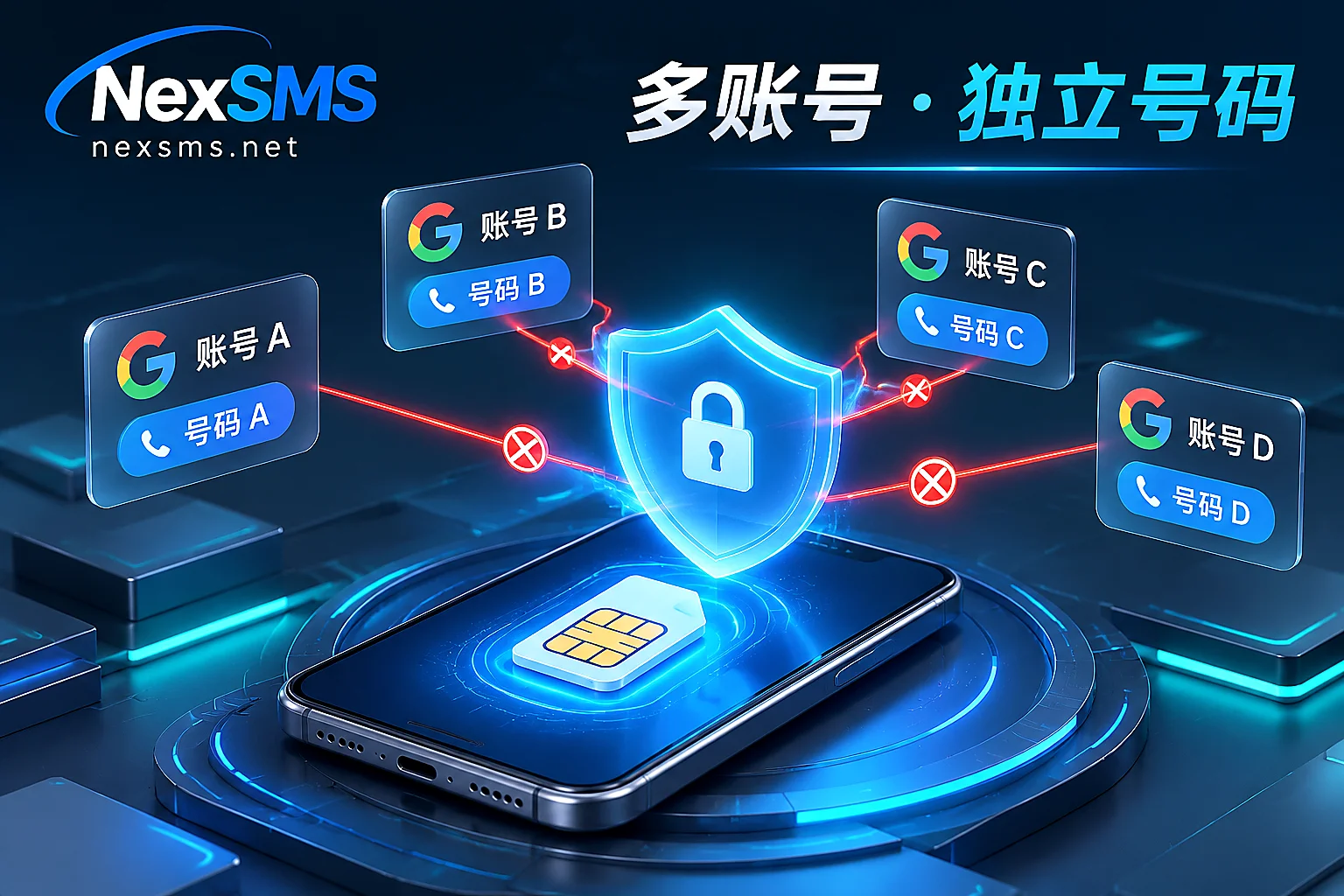
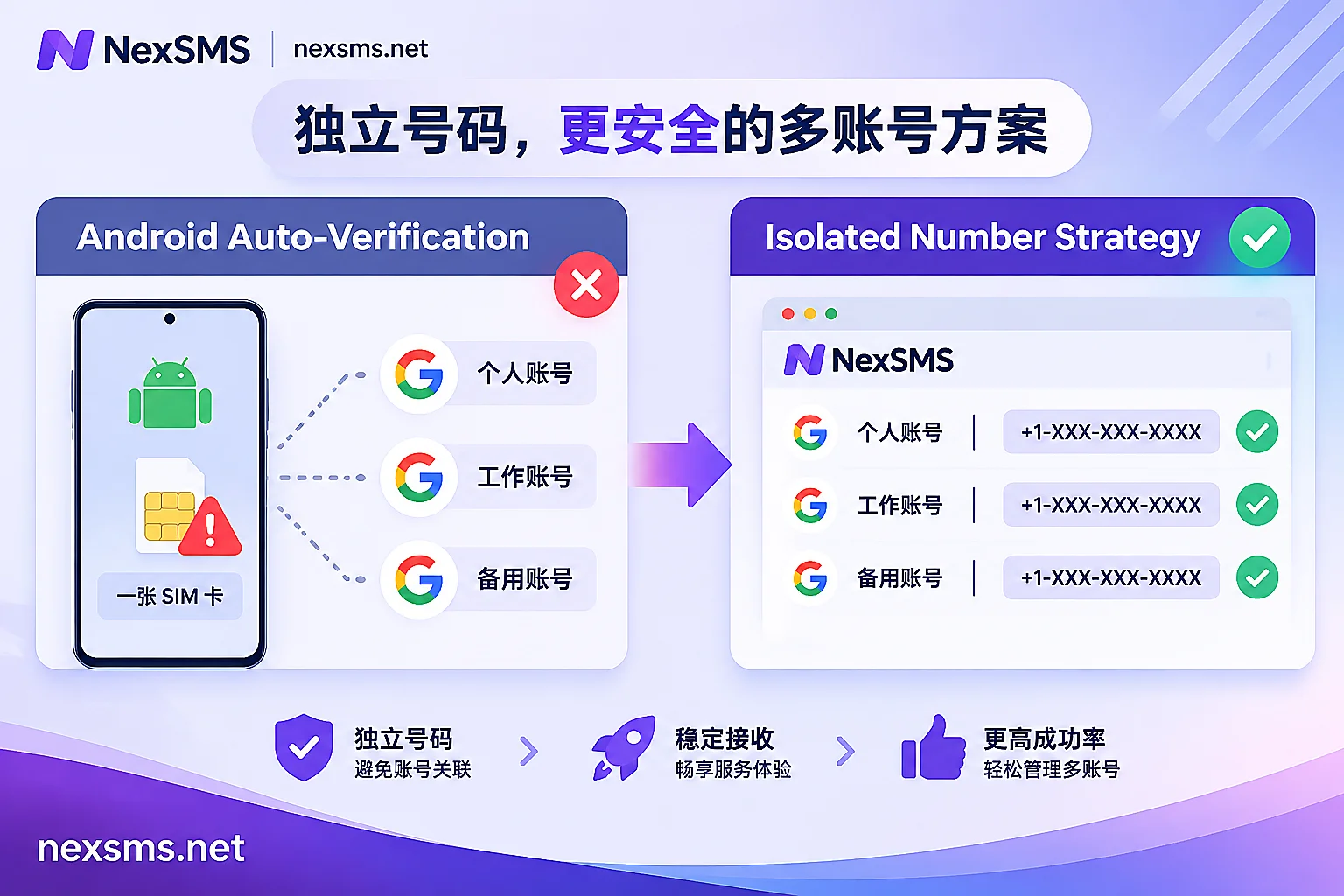
According to recent reports from tech media such as Android Authority, Mashable, and IT之家, Google has enabled a "Verify phone numbers automatically" mechanism by default on Android devices. As long as your phone has a SIM card inserted, the system will silently communicate with the carrier in the background to complete verification and automatically add this number to all Google accounts logged in on this phone—whether it's your main account, work account, test sub-account, or accounts logged in later.
For ordinary users with only one account, this may simplify the recovery process; but for teams and individuals who need strict isolation between work and personal identities, maintain multiple overseas business accounts, or use foreign number-retention cards, this "bind everyone without notice" mechanism directly breaks the bottom line of account anti-association.
This article combines two major changes in Google's verification mechanism to explain how to investigate and cut off silent number linking on the phone, and how to successfully complete Google account SMS verification through proper number selection when cleaning old numbers and registering new accounts.
Hot Topic: Why Are Your Google Accounts Silently Linked to a Number?
According to Google's updated support documentation, the "phone number verification" feature on Android is designed to periodically verify the device number to support account login recovery, RCS communication, and other services. However, this opt-out rule has exposed three obvious pain points in practice:
- One device, multiple accounts forced to "cross over": If you have personal Gmail, company business account, YouTube channel account, or Google Play developer account logged in on one Android phone, background automatic verification will instantly make all accounts share the same phone number. We have analyzed in detail in "What are the risks of multiple overseas accounts sharing one number: five consequences and how to allocate numbers by account purpose" that once core identity identifiers overlap, a sub-account triggering risk control can easily implicate the main account.
- Periodic re-verification in the background incurs roaming SMS charges: Google's official documentation explicitly states that the system will periodically re-verify the number with the mobile carrier, and carrier charges may apply. Many users holding foreign physical cards or pay-per-use number-retention cards have been charged for background uplink SMS without knowing it (if you have encountered number-retention card maintenance difficulties before, you can refer to "Giffgaff roaming purge, Tello order cuts and bans: How to choose alternatives after pitfalls with overseas phone number retention cards in 2026?").
- Turning off the switch does not equal unlinking: Even if you turn off automatic verification in settings, that only prevents future actions; phone numbers that have already been added to various sub-accounts must be manually cleaned up by logging into each account's backend.
Step 1: Disable Android Automatic Verification and Clean Up Linked Numbers
If you have an Android device with multiple Google accounts logged in, it is recommended to immediately perform the following troubleshooting and "defusing" in order:
1. Turn off the system-level automatic verification switch
Open your Android phone's Settings → Google → All services → Privacy & security → Phone number verification, and turn off the "Verify phone numbers automatically" switch.
Note: Some Chinese domestic systems (such as certain customized UIs) hide the independent Google entry in the main system settings menu. You can search for "Google" in the system's built-in search box, or use shortcut tools to bring up the Google Play services settings page to turn it off. In addition, since some users have reported that the switch may reset after system updates recently, it is recommended to check it periodically.
2. Check and detach linked accounts
Log in to your sub-accounts, work accounts, or business accounts one by one, and go to Google Account Management (myaccount.google.com) → Personal info → Contact info → Phone.
If you find that your device number has been attached to accounts it should not be associated with, do not delete it directly—for business accounts with two-step verification enabled or sensitive to risk control, directly clearing the only contact phone number can easily trigger a second verification lock. A safer approach is to first change to an independent overseas number to complete SMS verification, then remove the mistakenly linked device number.
Extended Hot Topic: What's the Deal with the "QR Code Uplink SMS" When Registering New Accounts?
In addition to old accounts being silently linked, many users have recently encountered another obstacle when registering new Google accounts or doing initial verification: the page no longer lets you enter a phone number to receive a 6-digit code, but instead pops up a QR code, prompting "Please scan the QR code with your phone and send an SMS to complete verification."
This is an anti-abuse mechanism gradually being rolled out by Google—shifting from traditional "downlink receiving SMS" to "uplink sending SMS." When the system determines that the current registration environment (such as network exit, device fingerprint, or continuous registration behavior) is high-risk, it forces the QR code to appear, requiring you to use a real phone to send an encrypted string to a specified number.
Since online SMS verification platforms are designed to "receive SMS verification codes online," they cannot scan the code for you and send an uplink SMS. Therefore, once you encounter the forced QR code interface, simply changing the number will not bypass it. The response should be two steps:
- First reduce the risk control trigger conditions: Stop repeatedly retrying in the current error browser window. Clean the environment or switch to a cleaner mobile entry point (such as the original Gmail App) to return the verification process to the standard "enter phone number → receive 6-digit code" mode (for the complete troubleshooting logic of "this number cannot be used for verification," see "2026 Overseas App SMS Verification Error Troubleshooting: Why Do OpenAI Codex, Claude, and Google Always Say 'Number Unavailable'?").
- Then match an independent number of the corresponding level: After the page returns to the normal SMS delivery process, use the Google dedicated SMS verification solution to complete verification.
How to Configure Independent Verification Numbers for Google Accounts with NexSMS?
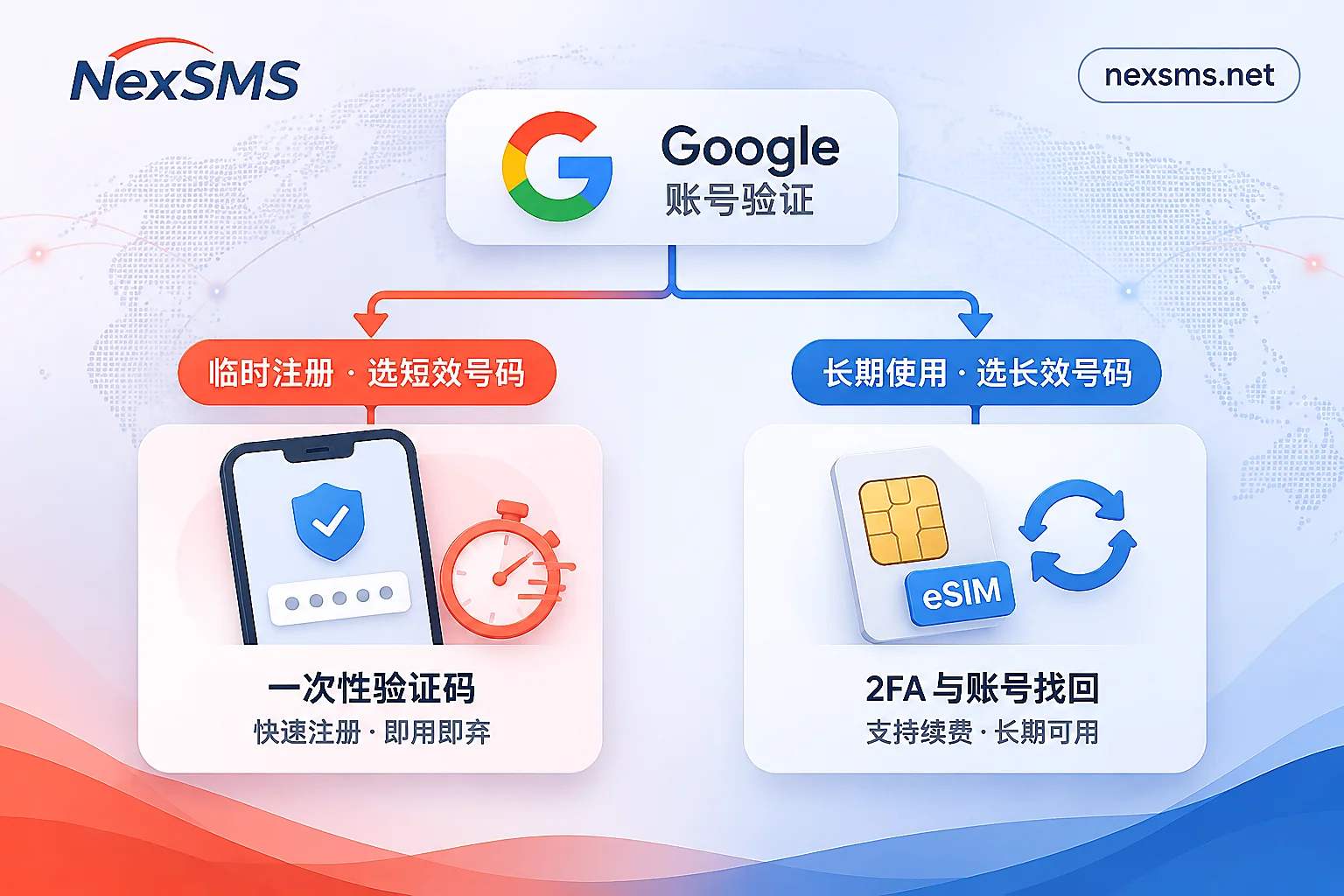
Whether you are supplementing independent numbers for multiple Google accounts that have just been unlinked to achieve "one number per account," or registering Google accounts for new business, the core principle of number selection is only one: decide whether to use a short-term or long-term number based on how long the account will live and what it will be used for (this is also the strategy we emphasized in "2026 Overseas Platform Risk Control Upgrade: How to Avoid Verification Code Failure Risks Through 'Number Tiering'?").
On the NexSMS platform, you can precisely select numbers by target application (choose Google) and country, and all received verification codes will be displayed in real-time on the web page:
Scenario 1: One-time registration and temporary testing → Choose "Short-term Ordinary Number"
If you just need to register a temporary Gmail for receiving non-core notifications, trying out a foreign service tool, and will not need to recover it via phone number later:
- Applicable product: Short-term ordinary number
- Features and boundaries: Pay-per-use, low cost; but short validity period, one number can only receive one verification code, and cannot be renewed. Therefore, it is suitable for solving the immediate "final step." After registration, it is recommended to bind an Authenticator or Passkey in Google security settings as soon as possible to reduce the probability of subsequent re-verification.
Scenario 2: Main account unbinding and number change, Google Play developer, long-term business account → Choose "Long-term Premium Number"
If you are cleaning up the "Android automatic verification number crossover" issue mentioned above, and need to bind a stable phone number to a work account, YouTube channel account, Google Ads account, or a Google Play / Android developer account facing identity verification:
- Applicable product: Long-term premium number
- Features and advantages: Provides real carrier local numbers (based on local physical cards and eSIM, not virtual landing numbers that are easily identified and blocked). Within the validity period, the same number can receive verification codes unlimited times; before expiration, manual renewal is supported to continue holding it.
- Why it matters: As analyzed in "Why keep a long-term SMS number even after binding an authenticator? The fallback role of real numbers from the perspective of risk control re-verification", when Google detects login from a different location or sensitive operations, it will still force the original bound phone number to receive SMS re-verification. Only by holding a renewable real carrier local number can you completely escape the dilemma of "not receiving secondary verification codes after changing numbers" and "all accounts automatically linked when inserting a SIM card."
Security reminder: Although the NexSMS official website also provides free public numbers that can be viewed after login, verification codes received by public numbers are visible to everyone. Never use them to bind any important Google account.
Standard Process for Receiving Google SMS Verification Codes with NexSMS
When preparing to bind a new number to your Google account, you can follow these four steps:
- Check application instructions and inventory: First visit the Google SMS verification instruction page to learn about common verification scenarios and precautions, or go to the price and inventory query page to check the current starting prices and available numbers for Google services in various countries.
- Select numbers by country and business type: Go to the number selection by country page (for example, if you need a US number, check the US SMS verification page), and choose a matching number source based on area code, inventory status, and your network environment's location. Number sources change dynamically with inventory; please refer to the real-time inventory and prices displayed on the official website before placing an order.
- Log in, get a number, and trigger verification: Go to the NexSMS user dashboard to log in (supports cryptocurrency such as USDT/BTC, Alipay, and WeChat recharge; account balance does not expire). After selecting the Google application and country, obtain a number and fill it into Google's phone number verification box to request SMS delivery.
- Receive codes in real-time via web or API: Read the real-time displayed Google verification code directly on the dashboard page and fill it back. If you are a technical team maintaining a large number of accounts and need to integrate number acquisition and code receiving into automated programs, you can also contact the 24/7 Telegram customer service for developer API integration support (API code receiving and web code receiving can be used in parallel).
Objective statement: Google's risk control rules combine your network environment, device status, and operation frequency at the time. No SMS verification platform can guarantee 100% verification success. If you encounter any questions during operation, you can always consult through the customer support entry.
Conclusion
Google's default enabling of "Verify phone numbers automatically" on Android and the introduction of stricter verification mechanisms at registration are essentially signals that the platform is tightening its identity graph. For multi-account holders, putting all eggs in the same SIM card inserted in the phone has become a high-risk operation. Only by promptly turning off the silent verification switch in the phone's background and using the NexSMS feature system to assign independent short-term or long-term local numbers to Google accounts of different values can you protect your privacy boundaries while keeping every business account on a controllable and secure track.