 NexSms官方博客
When you get stuck on Google account SMS verification, don't rush to resend to the same number or blindly buy a number—first look at what the page asks you to do, then choose the corresponding solution:
- Scenario 1: Enter phone number, receive 6-digit SMS code (or voice call): If your current number is restricted and can't receive SMS, you can switch to a real carrier number segment that hasn't been overused to receive the code. If you only need to pass this one registration verification, a short-term number is sufficient; if you'll need to log in again or recover the account later, choose a number that can receive codes long-term.
- Scenario 2: Computer shows a QR code, requiring you to scan with your phone and actively send an SMS: This is Google's reverse SMS verification mechanism. Online virtual numbers that only receive SMS cannot send SMS and cannot pass this step. You need to switch to a mobile Gmail App or other entry point to try to return to the normal code-receiving flow, or use your own physical SIM card with international SMS enabled to send the message.
- Scenario 3: New device login or account anomaly requires two-step verification: Never use a one-time temporary number or free public number for security verification. This scenario requires a long-term controllable number of your own, and after entering the account, promptly set up an Authenticator and Passkey.
Below, we explain the trigger logic, switching methods, and number selection pitfalls for these three scenarios in the actual order of operation.
1. Why does Google phone verification sometimes require receiving a code and sometimes scanning a QR code in 2026?
Many users wonder: isn't Google replacing SMS verification codes with QR codes? Why do some people still receive 6-digit SMS, some need to scan a QR code to send an SMS, and some can skip entirely?
In fact, Google is indeed gradually reducing its reliance on traditional SMS authentication to lower the risk of phishing code theft, SIM card hijacking, and malicious account creation. However, this adjustment is being rolled out gradually by region and scenario. Currently, during account creation or login, you may still encounter the following three completely different verification methods:
| Verification form on page | What is being verified underneath | Can online virtual number platforms be used? | Processing priority |
|---|---|---|---|
| Enter number → receive 6-digit SMS (or voice) | Real person identity verification / backup phone confirmation | Yes (note the distinction between short-term and long-term) | Switch to a real carrier number segment that hasn't exceeded limits |
| QR code pops up → scan with phone and send SMS outward | Reverse verification of device and real SMS sending capability | No (virtual number platforms can only receive, not send) | First switch to mobile entry, or use a physical SIM to send SMS |
| "Skip" button appears | Current environment has high trust level | Not needed | Skip directly, then add security settings after entering the account |
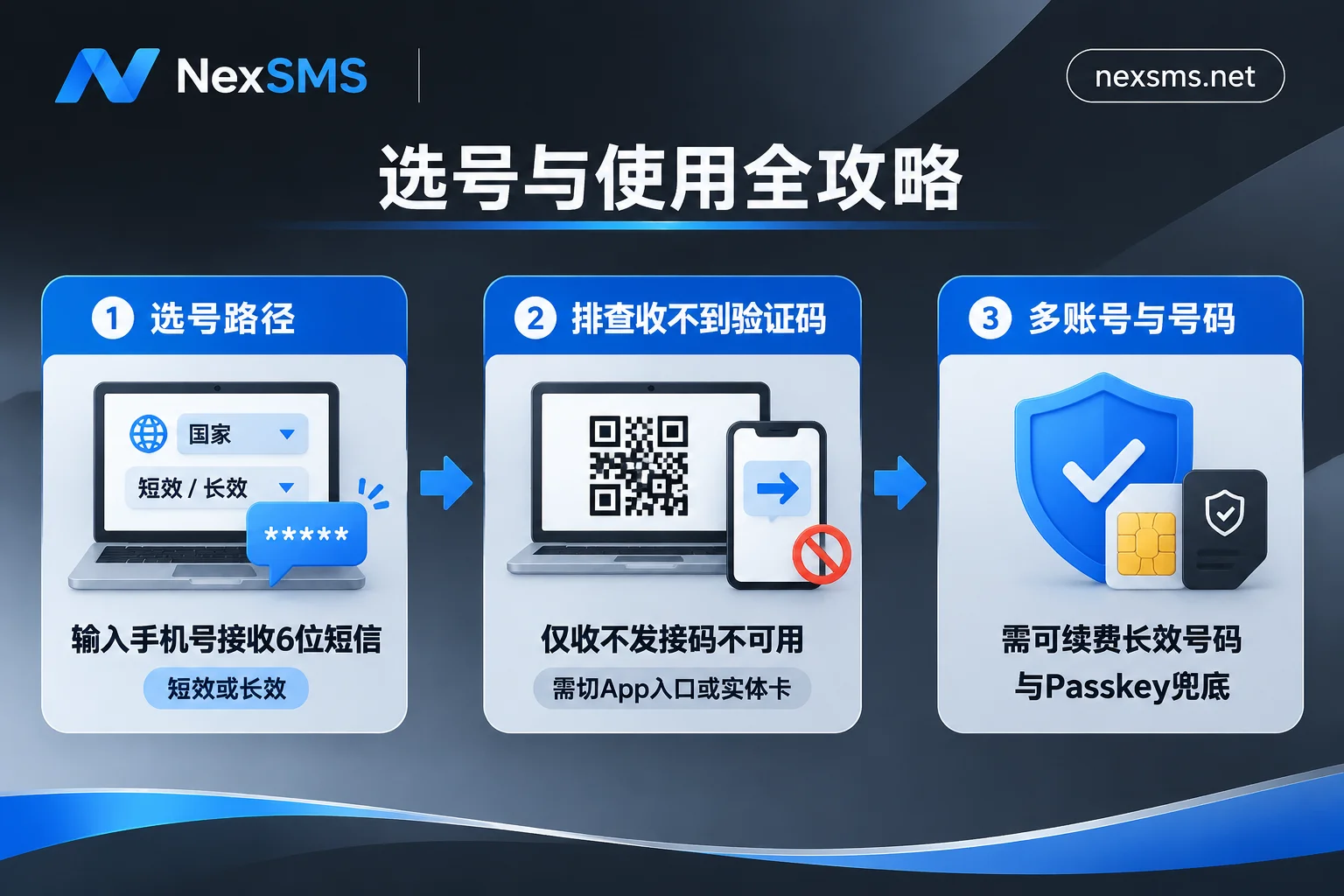
Understanding this table can save you money: if the screen clearly shows a QR code and asks you to send an SMS to a specified number, buying a number that can only receive but not send will get you nothing.
2. When "scan QR code to send SMS" fails, how to switch back to normal verification?
When you open the registration page in a computer browser, if the system determines that the current operating environment or request frequency is sensitive, it is likely to trigger "scan QR code to send SMS." If you don't have a physical SIM card that supports international SMS, you can try the following switching paths in order:
1. Switch to the official mobile app entry for registration
In practice, the computer web page is more likely to pop up the QR code SMS than the mobile end. You can directly open the official Gmail App on your phone (or "Add Account → Google" in iOS Settings) and tap "Create Account." The mobile verification channel often reverts to the traditional "enter phone number → receive 6-digit SMS code" flow, and may even show a skip option when the environment is clean.
2. If you don't need a new Gmail address, try "Use my current email address instead"
If your goal is only to log in to YouTube, Google Drive, or bind to various third-party services, when choosing an email address during account creation, you can tap "Use my current email address instead" and enter your commonly used non-Gmail email to receive the email verification code. Although this cannot guarantee 100% exemption from phone verification, it can sometimes reduce one round of risk control interception.
3. When you really need to scan QR code to send SMS, note three details
If you have a physical SIM card with international SMS enabled and are ready to scan the code to complete this step, note:
- Do not modify the preset SMS content and short code, just tap send after the system jumps to the SMS app;
- On dual-SIM phones, check the default sending SIM slot to ensure the SMS is sent from the card you want to verify;
- Be aware of carrier charges: Google itself does not charge a verification fee, but actively sending an international SMS will be charged at your mobile plan's standard SMS rate.
4. Don't keep refreshing in the same environment
If the page only shows a QR code for several consecutive times with no SMS entry, continuing to refresh repeatedly will only cause the current browser profile and IP exit to be recorded as higher risk by the system. It is recommended to close the page directly, wait 1–2 days, clear browser cache (or create a new independent browser profile), keep the access environment consistent, and try again.
3. Stuck on "receive 6-digit SMS"? How to troubleshoot and choose numbers with NexSMS?
When the page clearly asks you to enter a phone number to receive a 6-digit verification code, the common blockers are two types: either it prompts "This phone number cannot be used for verification / too many verification attempts", or you tap send but the SMS never arrives.
Here is a hard rule: As soon as the page indicates the number cannot be used or too many attempts, immediately stop retrying the same number. Google officially limits the number of accounts that can be created and verified with a single number; repeated submissions will only aggravate risk control (for specific error causes and troubleshooting details, see "What to Do When Google Account SMS Verification Is Rejected? Three Causes and Number Switching Paths" and "Google Says 'This Phone Number Cannot Be Used for Verification'? Distinguish the Cause Before Switching Numbers").
When you don't have extra physical SIM cards available, you can check the corresponding virtual number scenario descriptions on the Google account SMS verification page and choose the appropriate number type on NexSMS according to your account lifecycle:
1. Only need to pass this one registration verification: short-term regular number
If you are just doing a temporary test or one-time verification and won't need to receive codes with this number later, you can learn about "short-term regular numbers" in the NexSMS Features. It is billed per use with a short validity period, one number receives only one verification code and cannot be renewed, and the received SMS is displayed in real time on the web page—suitable for lightweight scenarios where you use it and discard it.
2. Primary account, cross-border office account, or long-term re-verification: long-term premium number
For any Google account you plan to use long-term and that contains important emails or paid subscriptions, never bind security information with a one-time short-term number. Once you log in from a different location, clear cache, or forget your password later, Google will still send a code to the original number. If the short-term number cannot receive a second code, the account will be difficult to recover (for number selection logic, see "How to Choose Between Short-Term Numbers and Long-Term Premium Numbers").
For such scenarios, you should use NexSMS's "long-term premium numbers":
- Numbers come from real carrier local numbers (local physical SIM cards and eSIMs, not virtual landing numbers that are easily blocked by platforms);
- During the validity period, the same number can receive unlimited codes, so you can continue to use it for login re-verification, password changes, or binding other overseas platforms;
- Renewal is supported before expiration to retain the number, avoiding account loss due to number expiration and deactivation.
3. Pitfall warning: Don't use free public numbers to verify Google accounts
Although NexSMS also provides a free public numbers page to understand the mechanism, the official website explicitly warns not to use them for important accounts—verification codes received by public numbers are visible to all logged-in users, which not only poses serious privacy risks but also these numbers have almost certainly been used by countless people to try Google registration, with a very high probability of directly triggering "too many attempts" rejection (for reasons, see "Why Are Free Public Numbers Unsafe").
4. NexSMS practical number selection process
- Open Pricing and Available Number Query, search for Google to view current starting price and available inventory;
- Go to Choose Numbers by Country and select the appropriate area code based on the region corresponding to your current operating environment;
- Log in to the NexSMS User Dashboard to place an order and get a number (supports Alipay, WeChat, and USDT/BTC top-ups; balance does not expire), fill the number into the Google verification box, and wait for the 6-digit verification code in real time on the web page.
Please note: specific prices, available country inventory, validity days for short-term and long-term numbers, and refund rules are subject to the real-time display on the official order page. Since Google's approval is also affected by current network quality, device environment, and behavior frequency, no virtual number platform can guarantee 100% verification success. If you have questions during number acquisition or code reception, you can contact the 24/7 online Telegram customer service via the website.
4. After passing SMS verification, do these 4 things immediately to protect your account from being locked
Many users finally pass SMS verification, only to be locked out again a few days later when logging in from another computer. Successful verification is only the first step; after entering the account, spend 3 minutes completing these four configurations to truly keep the account in your hands:
- Check and handle the phone number automatically retained in the account: If you just used a short-term virtual number to pass registration risk control, after entering the account, open "Security → Your devices and recovery methods" and confirm whether this temporary number has been left by default in the backup phone field, to avoid binding confusion with other accounts or inability to re-verify later (for unbinding and troubleshooting methods, see "Google's 'Automatically Verify Phone Number' in the Background Causes Multi-Account Association").
- Add a "recovery email" immediately: Find a commonly used email you control long-term, fill it into the recovery information, and complete email verification. This is the most stable fallback channel besides a phone number.
- Upgrade everyday two-step verification to an Authenticator or Passkey: In "Security," enable Google Authenticator or add a Passkey, and copy and store the system-generated set of 10 one-time backup codes in a safe place. When logging in from a new device later, use the Authenticator or backup codes directly, which reduces dependence on SMS channels and avoids the hassle of being asked to send SMS repeatedly.
- Be restrained in the first few days with a new account: For a newly created account, first send and receive a few emails like a normal user, browse YouTube, or use Docs. Do not frequently switch network nodes in different regions in the first day or two, and do not immediately change the password or intensively bind a large number of third-party services.
5. Common Questions About Google Account SMS Verification
Q1: After registering successfully with a virtual number, will someone else later get the same number and log into my Google account?
Only if you leave an expired and recycled number in your Google account's "backup phone" or "two-step verification" for a long time does subsequent loss of contact or risk exist. If you use a short-term number, promptly unbind it after entering the account and switch to your own long-term number + Authenticator for two-step verification. Even if someone else gets the recycled number, they lack the password and Authenticator credentials and cannot directly log into your account.
Q2: How many Google accounts can one phone number pass SMS verification for?
Google Help Center explicitly states that it limits the number of accounts that can be created and the number of verifications per phone number, but it has never disclosed the specific upper limit. To avoid triggering "this number has been used for verification too many times," important business should adhere to "one account corresponds to one long-term controllable number," and do not repeatedly use the same number to verify multiple new accounts.
Q3: Google verification says "try receiving a call instead"—can I use that?
If your SMS is delayed or blocked by the carrier's SMS gateway, and the page offers the option to "receive a voice call instead," using your own physical SIM card to receive the voice code can indeed solve the problem. However, note that ordinary online virtual numbers that only receive SMS generally do not support voice calls. In this case, it is better to wait a few minutes to confirm whether it is just SMS delay, or switch to a clean real carrier SMS source to re-trigger SMS verification.